Application Settings

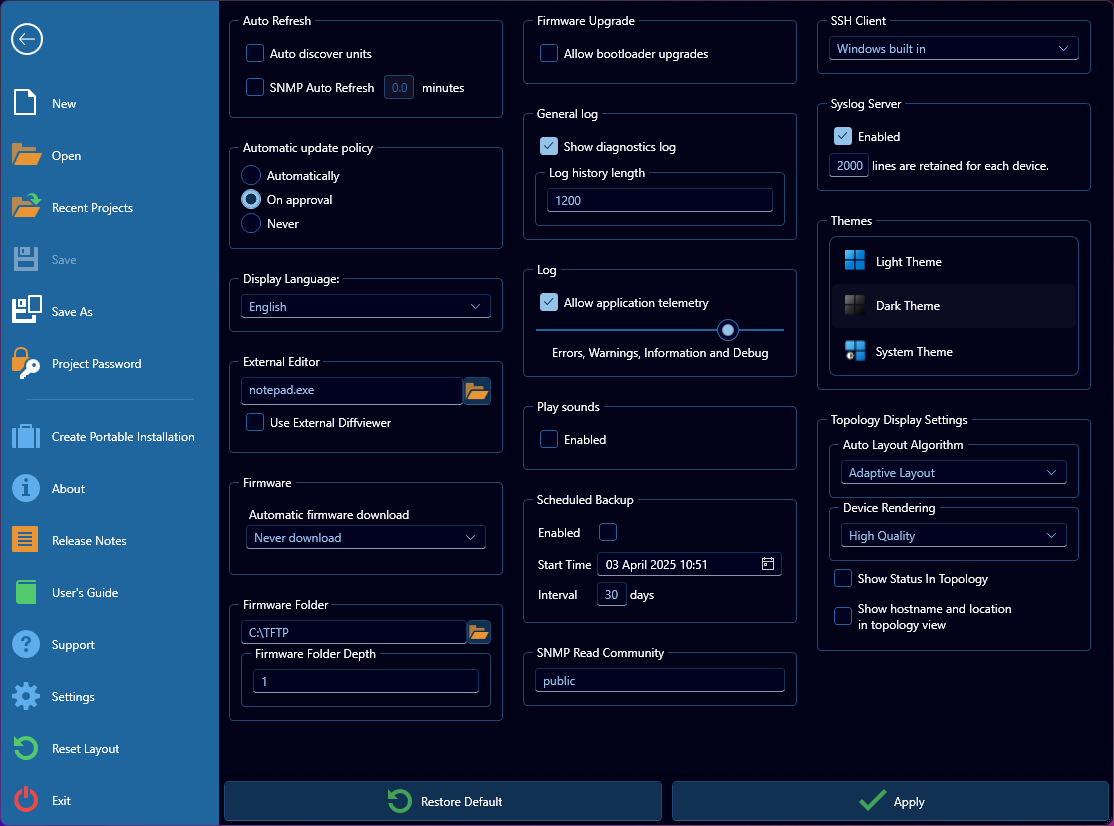
This menu contains a number of settings that affect the WeConfig application globally, regardless of the current working project. These settings are grouped for convenience into relevant sets where applicable. This menu also contains theme selection to the right hand side of the interface, where the following themes are available:
| Theme | Explanation |
|---|---|
| Light theme | A light mode theme with brighter colors |
| Dark Theme | A dark mode theme with darker colors |
| System Theme | A theme that becomes either the light or dark theme depending on the operating system preferences |
The other settings are grouped as follows, with any group that has a pending change being highlighted in the interface:
Auto-refresh
This group deals with options that allow WeConfig to execute certain network tasks in the background, automatically, and contains two options, Auto discover units and SNMP Auto Refresh.
| Option | Description |
|---|---|
| Auto discover units | When checked, WeConfig will periodically run interface based device discovery on connected network interfaces. |
| SNMP Auto Refresh | When checked, WeConfig will automatically, periodically according the configured value, run SNMP-based scanning on existing devices, and update their information accordingly. |
Automatic update policy
This setting group controls how, if at all, Weconfig will update itself after installation. If enabled, when a new version is ready to run, a notification is shown in the user interface, prompting the user to restart with the new version.
The following options are available:
| Option | Description |
|---|---|
| Automatic | Continually check for new versions, download, and automatically update the installation at first opportunity. |
| On Approval | Continually check for new versions, but let the user decide whether the update should be downloaded and installed. |
| Never | Never check for any new versions |
Automatic and On Approval will require internet connectivity to function properly.
Display Language
This setting allows the user to change the user interface language. Supported languages:
- English (default)
- German
- French
- Chinese
External Editor
This setting group contains options related to external software that WeConfig may call. It has two options:
| Option | Description |
|---|---|
| External editor | When WeConfig needs to open a text file, it will use the editor specified here. By default, notepad.exe is used. |
| External Diffviewer | When the user requests to see a difference between two configuration files, this option, when checked, allows the user to bypass the built in diff viewer functionality, and use custom one instead. Enter the path to the diff viewer application in External Diffviewer. WeConfig will call the application with two command line arguments. The first argument will be a path to the previous revision of the configuration file, and the second argument will be a path to the current revision. |
Firmware
This group contains settings related to how WeConfig download and store device firmwares automatically on the user's local hard drive as they become available. By default this is turned off, but may be configured in the following way:
- No downloads at all (for any device type)
- All, as soon as possible (for all device types)
- Customized per device type
- No downloads at all
- All
- Latest (WeOS only - downloads the latest patch version for each minor version)
- Any firmware newer/published after than a specific date
- Any firmware with a version higher than a specific version
Firmware Folder
This setting group contains options related to how WeConfig picks up user-specific firmware. It contains two options, the first is a path where user specified firmware can be found use during firmware upgrade. It can be anywhere, as long as the directory is accessible by the current Windows user. The second is the Firmware folder depth
Firmware Folder Depth
By default, WeConfig will only find the files found in the specified firmware folder. If you sort your firmwares in a directory structure, then increase the folder depth to let WeConfig find files in subfolders. A level of 1 is the firmware folder only, a level of 2 is the firmware folder, and all direct subfolders. A maximum of 10 levels is supported.
Firmware Upgrade
This setting group contains options related to how WeConfig executes firmware upgrade. WeOS firmware packages are typically delivered as one unit, and contains both firmware and bootloader software. WeConfig will upgrade the bootloader as necessary, during the firmware upgrade process. Some advanced scenarios require bootloader upgrades only without upgrading the firmware. By enabling this option, it is possible to perform bootloader upgrades only in the firmware upgrade process.
General Log
This setting group contains options related to the general log panel, which may be enabled by the checkbox at the top of the group. This panel is mainly for use by developers and power users, but is generally not available. The second option herein is a specifier for the length of the general log that will be kept and displayed.
Log
WeConfig logs its activity to log files on the harddrive (can be found in %USERPROFILE%\AppData\Local\Westermo\WeConfig\Logs) and as application telemetry, if enabled via the checkbox in this group. The amount of information being logged there is determined by this slider.
The following options are available:
- Nothing
- Errors
- Errors and Warnings
- Errors, Warnings and Information (Default)
- Errors, Warnings, Information and Debug.
It is suggested to not change this setting from it's default value unless directed to do so by Westermo support.
Play sounds
When enabled, WeConfig will play sounds to grab the user's attention.
Scheduled backup
These configuration options allows you to set up an automatic, periodic backup of all supported devices. You can configure the start time where the initial backup may be taken, as well as the number of days between backups.
WeConfig must be running for the backups to occur.
SNMP Read Community
This freeform textbox contains the fallback SNMP read community that will be used towards devices where no specific SNMP settings have been configured in device access.
SSH Client and Parameters
When the user wants to access a device using an SSH client, WeConfig will use the client specified here. By default, WeConfig will use the SSH client built into Windows. To use another, select Custom, and enter the path to the executable.
When using the custom option, WeConfig must know how to specify connection options to the custom application. This is done in the SSH Parameters entry.
Suppose a custom client is used like this to connect to a device: my-ssh.exe user@ip-address, then WeConfig must know how to replace user and ip-address.
This is done by using variables. Variables are replaced by WeConfig with the actual values. The supported variables in WeConfig are:
| Variable | Description |
|---|---|
%a | The IP Address of the device |
%u | The user name |
In order to support the example client above (my-ssh.exe user@ip-address), the field SSH Parameters entry should read %u@%a.
Syslog Server
This setting group contains options related to WeConfigs interactions with the Syslog protocol. When enabled, WeConfig will act as a syslog server that can recieve syslog encoded messages from the devices. WeConfig will keep a number of syslog messages up to the number of configured lines per device.
Topology Display Settings
This setting group contains options related to how the topology panel displays information. It contains four different options:
Auto Layout Algorithm
When the topology view is requested to auto layout devices and connections in the topology view, it will use the algorithm selected here. Supported algorithms:
| Algorithm | Description |
|---|---|
| Adaptive Layout (default) | A stress-majorization layout solver that takes topology information such as ping distance and rings into account |
| ISOM | Isometric layout |
| Tree | Tree layout |
Using Auto layout functionality with the adaptive layout algorithm on very large networks (> 1000 devices) may take significant time.
Device Rendering
This setting instructs WeConfig how much CPU usage it may spend on rendering device images in the topology view. The following options are available
| Option | Explanation |
|---|---|
| High Quality (default) | Render device images in the best possible quality |
| Linear | Use linear pixel interpolation, slightly reduced quality / improved performance |
| Nearest-neighbor | Use nearest neighbor pixel interpolation, further reduced quality / improved performance |
Show Status In Topology
When enabled, the topology view will display current operation status in the device icons in the topology view.
Show hostname and location in topology view
When enabled, the topology view will display the host name and location, when they exist, on each device node in the topology view.