Document Panel
The document panel is the central piece of the WeConfig user interface, and is a free-form docking space where different panels can be arranged to your desire and specification. Any panel can also be undocked entirely as a free-floating window to be placed externally, useful for running WeConfig in a multi-screen setup.
The layout is saved in-between program runs on a per-screen-setup basis. As such, WeConfig will remember where you have placed its different panels after it is closed and reopened.
If you have lost track of a panel or want to go back to the default view, you can always reset the layout
Docking
In order to dock a panel somewhere, start by left-clicking and dragging the panel header, as depicted below:


WeConfig will then display a number of dock anchors, as seen below:

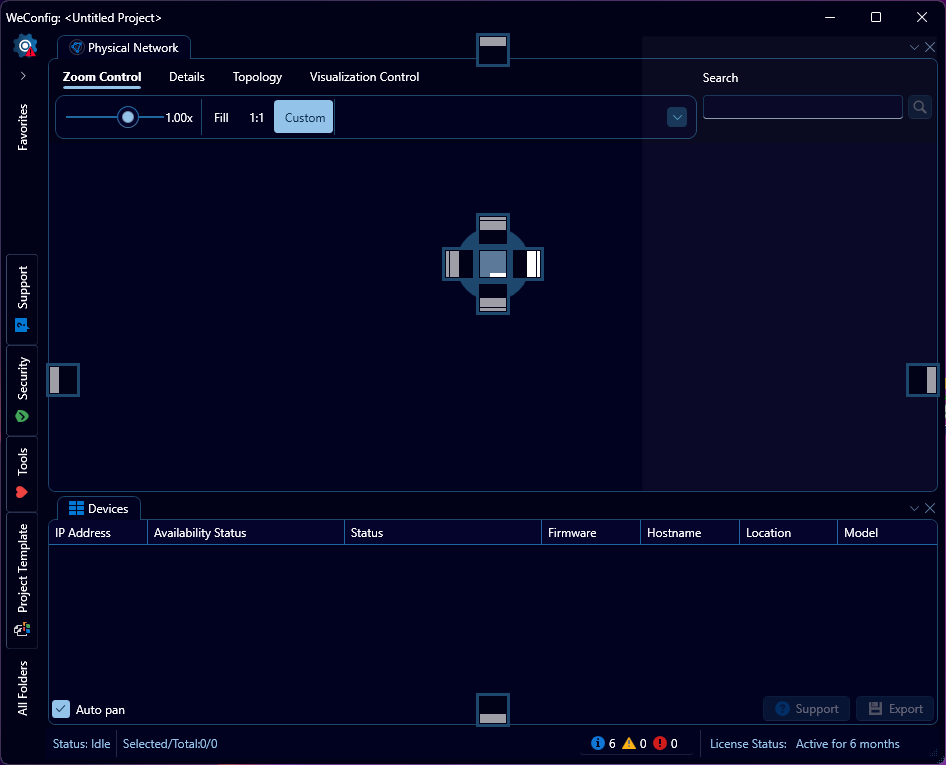
Where the one highlighted in a brighter way than the other anchors is the currently selected docking point (in this case, the inner left one in the middle of the 'Physical Network' panel), drag the mouse over another anchor to select a different one. A highlight area, seen here between the 'Physical Network' panel and 'Attachments' panel provides a preview of where the docked window will end up. In order to complete the dock, simply release the left mouse button over one of the anchors.
Floating panels
In order to put a panel into floating mode, start the procedure to dock it, but do not select any of the anchors, upon release, the panel will then be put into floating mode.
Any panel can also be put into float mode by the panel headers context menu, selecting the "Float" option. This context menu also allows you to re-dock a floating window.
Closing panels
Panels can be closed either via the panel headers context menu, selecting the "Close" option, or via the 'X' button located to the top-rightmost part of the panel header, as seen below


Status bar
At the very bottom of the document panel you will find the status bar:


This bar communicates several pieces of information, from left to right:
Status indicator
Leftmost you will find the status indicator, this contains a short summary of what WeConfig is currently doing. When WeConfig is not doing anything of interest, the status will be listed as "Idle".
Selection indicator
Next is the selection indicator, which displays both the current number of devices in the network, as well as how many of them are considered selected at the current moment.
Issue indicator
Next, to the right hand side of the screen, you will find the issue indicator, this will let you know if there are any issues that WeConfig would like to suggest you take care of, their count and severity. With the above example indicating there are 3 issues warranting inspection, and all three are ranked as "informatory".
Clicking the issue indicator will open up the issue panel
Portable mode indicator
Next, conditionally, is the portable mode indicator, this is only visible if, and an indicator that, WeConfig is running in portable mode.
License indicator
Finally, to the rightmost part of the status bar, is the license indicator, which displays the current licensing status of the software:
Interested in acquiring a licensed version of WeConfig? Please turn to your Westermo point of contact, or send us a request at https://www.westermo.com/contact/send-message.
This indicator also has a context menu. This context menu will allow you to do two things:
- Create a finite amount of temporary "trial" licenses that are valid for one day, perfect for trying out the expanded features that a licensed version of WeConfig will offer.
- Open a dialog for activating license keys provided to you.