Firewall
Firewall is a licensed task that allows for configuration of firewall rules on selected devices. The current set of devices support by this task is WeOS 4 and WeOS 5 devices.
Interface Components
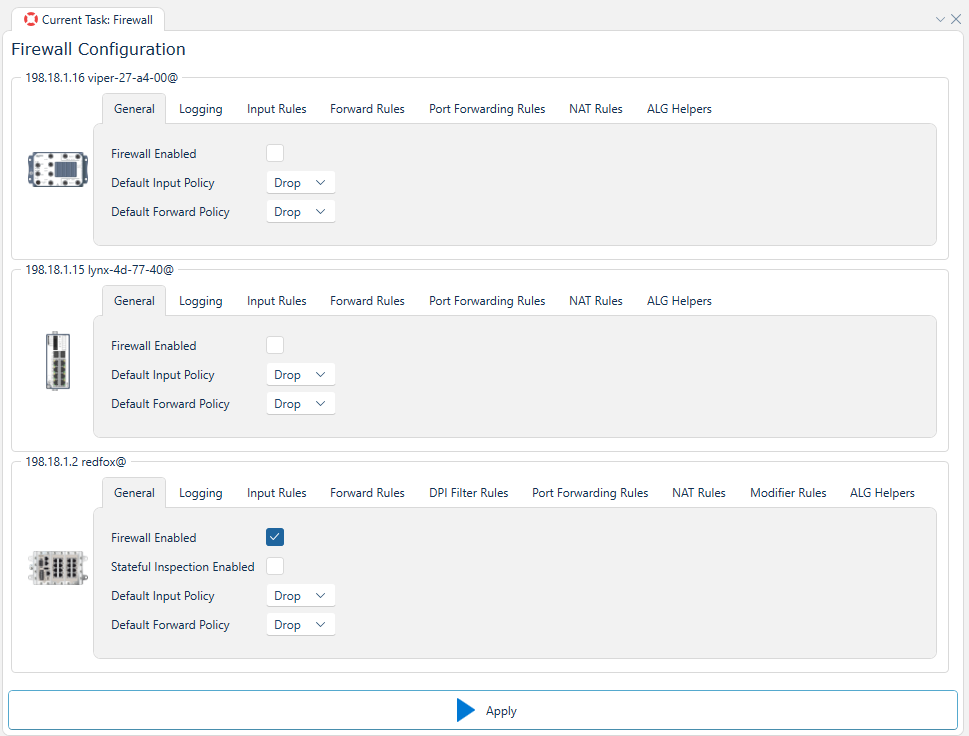

Depicted above you can observe how the interface might appears for a selection of two WeOS 5 devices and one WeOS 4 device. Where the configuration options for each device is divided into several tabs with the following contents:
What features are available depends on the WeOS version, and whether or not the device is an Extended device.
| Tab | Description | WeOS 4/5 Standard | WeOS 4 Extended | WeOS 5 Extended |
|---|---|---|---|---|
| General | Enable / Disable firewall, and default policy | Yes | Yes | Yes |
| Logging | Enable / Disable logging, and configure rate limit on logs | Yes | Yes | Yes |
| Input Rules | Rules for incoming packets directed to the device | Yes | Yes | Yes |
| Forward Rules | Rules for incoming packets not directed to the device | No | Yes | Yes |
| DPI Filter Rules | Rules for incoming packets with a larger scope | No | Yes | No |
| Port Forwarding Rules | Expose internal devices via specific ports | No | Yes | Yes |
| NAT Rules | Rules for Network Address Translation | No | Yes | Yes |
| Modifier Rules | Rules for modifying the IP header in routed traffic | No | Yes | No |
| ALG Helpers | Shorthand Rules for specific protocols | No | Yes | Yes |
General


The general tab allows for enabling or disabling the firewall on the device, and setting the default policy for the firewall. The default policy can be set to either ACCEPT or DROP. The default policy is the action that the firewall will take if no rules are matched.
For WeOS 5 devices, the firewall can be disabled and rules can still be set, but they will not be enforced until the firewall is enabled.
Default Forward Policy is only available on Extended devices.
WeOS 4


For WeOS 4 devices, the firewall must be enabled to be able to set any rules.


WeOS 4 devices also have the option to set Stateful Inspection, which is an ability to drop packets of invalid state.
Logging
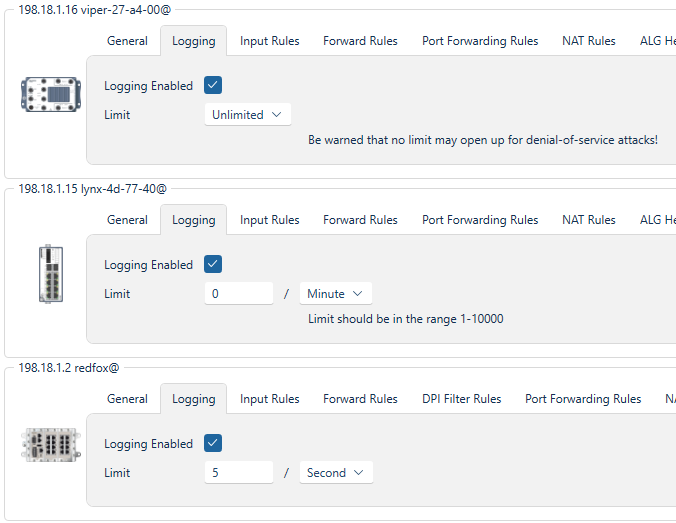
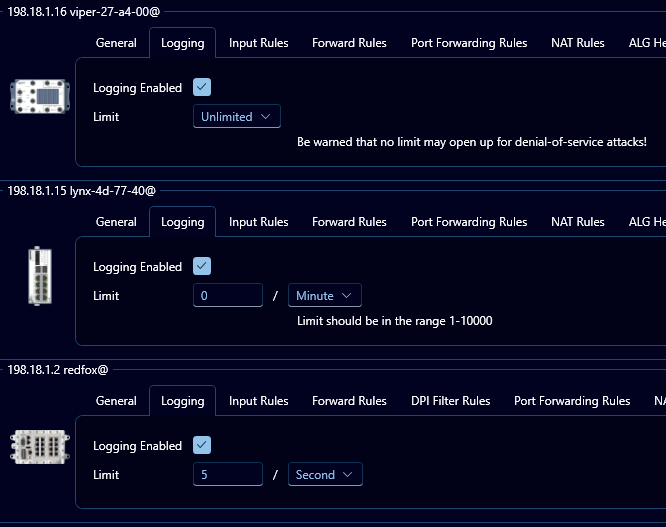
The logging tab allows for enabling or disabling logging of packets that are matched by the firewall rules. The rate limit for logging can also be set, which is the maximum number of logs that can be generated per given time unit.
WeOS 5 devices defaults to unlimited logging, while WeOS 4 devices defaults to 5 logs per second.
The limit should be in the range 1-10000, and the time unit can be set to either second, minute, hour, day, or unlimited.
Configuring logging with no rate limit may lower the security posture of the device by opening up for denial-of-service attacks.
Input Rules
The input rules tab allows for setting rules for incoming packets directed to the device. The rules can be set to either ACCEPT or DROP packets that match the rule.
WeOS 5 defaults with no Input Rules, while WeOS 4 defaults with rules that allow ICMP access to the device.
The input rules are checked after the routing decision and applies to packets that are directed to the local device and processes running on the device itself.
Drag the rows to reorder the rules.
Add Inupt Rule - WeOS 5
To add a rule to a WeOS 5 device, click the Add button. This will open a modal where the following fields can be set:


| Field | Description | Required | Notes |
|---|---|---|---|
| Action | Accept or drop traffic matching the specified rule | Yes | - |
| Protocol | The protocol type of the IP payload. Typically TCP or UDP but the filtering can also be made to match other protocols such as ICMP and ESP. | Yes | Will affect what fields are available |
| Incoming Interface | The interface where the packet comes in | Yes* | See info section below |
| Source Address | The source IP address of the packet | Yes* | See info section below |
| Source Port(s) | The source port(s) of the packet | Yes* | Only available if Protocol is TCP or UDP. See info section below |
| Destination Address | The destination IP address of the packet | Yes* | See info section below |
| Destination Port(s) | The destination port(s) of the packet | Yes* | Only available if Protocol is TCP or UDP. See info section below |
| Comment | A comment of the rule | No | - |
| Inline Counter | The rule uses a counter that only shows in the raw output. This counter is reset any time the firewall configuration is changed. | No | - |
| Bind Counter | The Counter the rule is assigned to | No | Can only be set if Inline Counter is not checked. If the Counter does not exist, one will be created. |
| Logging | Log traffic matching this rule | No | Logging must be enabled in the Logging tab |
Yes* =
If Protocol is TCP or UDP:
- At least one of
Incoming Interface,Source Address,Destination Address,Source Port(s), orDestination Port(s)must be set.
If Protocol is not TCP or UDP:
- At least one of
Incoming Interface,Source Address, orDestination Addressmust be set.
Add Inupt Rule - WeOS 4
To add a rule to a WeOS 4 device, click the Add button. This will open a modal where the following fields can be set:


| Field | Description | Required | Notes |
|---|---|---|---|
| Active | Is this rule active? | Yes | - |
| Action | Accept or drop traffic matching the specified rule | Yes | - |
| Protocol | The protocol type of the IP payload. Typically TCP or UDP but the filtering can also be made to match other protocols such as ICMP and ESP. | Yes | Will affect what fields are available |
| Incoming Interface | The interface where the packet comes in | No | - |
| Source Address | The source IP address of the packet | No | - |
| Source Port(s) | The source port(s) of the packet | No | Only available if Protocol is TCP or UDP |
| Destination Port(s) | The destination port(s) of the packet | No | Only available if Protocol is TCP or UDP |
| Logging | Log traffic matching this rule | No | Logging must be enabled in the Logging tab |
Forward Rules
The forward rules tab allows for setting rules for incoming packets not directed to the device. The rules can be set to either ACCEPT or DROP packets that match the rule.
The default is no Forward Rules.
Only available on Extended devices.
The forward rules are checked after the routing decision and applies to packets that are not directed to the local device.
Drag the rows to reorder the rules.
Add Forward Rule - WeOS 5
To add a rule to a WeOS 5 device, click the Add button. This will open a modal where the following fields can be set:


| Field | Description | Required | Notes |
|---|---|---|---|
| Action | Accept or drop traffic matching the specified rule | Yes | - |
| Protocol | The protocol type of the IP payload. Typically TCP or UDP but the filtering can also be made to match other protocols such as ICMP and ESP. | Yes | Will affect what fields are available |
| Incoming Interface | The interface where the packet comes in | Yes* | See info section below |
| Outgoing Interface | The interface where the packet is sent out | Yes* | See info section below |
| Source Address | The source IP address of the packet | Yes* | See info section below |
| Source Port(s) | The source port(s) of the packet | Yes* | Only available if Protocol is TCP or UDP. See info section below |
| Destination Address | The destination IP address of the packet | Yes* | See info section below |
| Destination Port(s) | The destination port(s) of the packet | Yes* | Only available if Protocol is TCP or UDP. See info section below |
| Comment | A comment of the rule | No | - |
| Inline Counter | The rule uses a counter that only shows in the raw output. This counter is reset any time the firewall configuration is changed. | No | - |
| Bind Counter | The Counter the rule is assigned to | No | Can only be set if Inline Counter is not checked. If the Counter does not exist, one will be created. |
| Logging | Log traffic matching this rule | No | Logging must be enabled in the Logging tab |
Yes* =
If Protocol is TCP or UDP:
- At least one of
Incoming Interface,Outgoing Interface,Source Address,Destination Address,Source Port(s), orDestination Port(s)must be set.
If Protocol is not TCP or UDP:
- At least one of
Incoming Interface,Outgoing Interface,Source Address, orDestination Addressmust be set.
Add Forward Rule - WeOS 4
To add a rule to a WeOS 4 device, click the Add button. This will open a modal where the following fields can be set:


| Field | Description | Required | Notes |
|---|---|---|---|
| Active | Is this rule active? | Yes | - |
| Action | Accept or drop traffic matching the specified rule | Yes | - |
| Protocol | The protocol type of the IP payload. Typically TCP or UDP but the filtering can also be made to match other protocols such as ICMP and ESP. | Yes | Will affect what fields are available |
| Incoming Interface | The interface where the packet comes in | No | - |
| Source Address | The source IP address of the packet | No | - |
| Source Port(s) | The source port(s) of the packet | No | Only available if Protocol is TCP or UDP |
| Outgoing Interface | The interface where the packet is sent out | Yes* | See info section below |
| Destination Address | The destination IP address of the packet | Yes* | See info section below |
| Destination Port(s) | The destination port(s) of the packet | No | Only available if Protocol is TCP or UDP |
| Logging | Log traffic matching this rule | No | Logging must be enabled in the Logging tab |
Yes* = At least one of Outgoing Interface or Destination Address must be set.
DPI Filter Rules
Deep Packet Inspection (DPI) rules work similar to regular Packet Filter (Input/Forward) rules, but look further into the payload when deciding what packets to allow or drop.
The default is no DPI Filter Rules.
Only avaible for Extended WeOS 4 devices.
Drag the rows to reorder the rules.
Add DPI Filter Rule
To add a rule to a WeOS 4 device, click the Add button. This will open a modal where the following fields can be set:


| Field | Description | Required | Notes |
|---|---|---|---|
| Active | Is this rule active? | Yes | - |
| Action | Accept or drop traffic matching the specified rule | Yes | Only Accept is allowed |
| Protocol | The protocol type of the IP payload | Yes | Only TCP is allowed |
| Incoming Interface | The interface where the packet comes in | No | - |
| Source Address | The source IP address of the packet | No | - |
| Source Port(s) | The source port(s) of the packet | No | - |
| Destination Port(s) | The destination port(s) of the packet | No | Default is 502 |
| Logging | Log traffic matching this rule | No | Logging must be enabled in the Logging tab |
| Outgoing Interface | The interface where the packet is sent out | Yes* | See info section below |
| Destination Address | The destination IP address of the packet | Yes* | See info section below |
| Modbus Function | DPI can filter on Modbus function codes. A range of codes can be specified. | No | - |
| Modbus Unit | DPI can filter on Modbus unit ID. More than one Modbus device may sit behind the same IP address, use this parameter to specify a single device. | No | - |
| Modbus Register | DPI can filter on Modbus register addresses. Note that the meaning of this filter varies depending on the function code. | No | - |
Yes* = At least one of Outgoing Interface or Destination Address must be set.
Port Forwarding Rules
The port forwarding rules tab allows for exposing internal devices via specific ports. The rules can be set to either ACCEPT or DROP packets that match the rule.
The default is no Port Forwarding Rules.
Only available on Extended devices.
Drag the rows to reorder the rules.
Add Port Forwarding Rule - WeOS 5
To add a rule to a WeOS 5 device, click the Add button. This will open a modal where the following fields can be set:

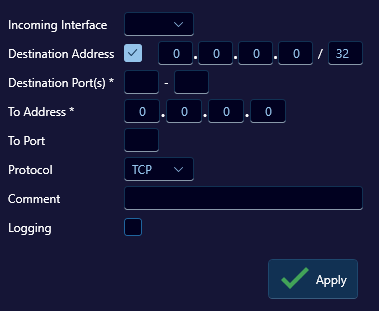
| Field | Description | Required | Notes |
|---|---|---|---|
| Incoming Interface | The interface where the packet comes in | No | - |
| Destination Address | The destination IP address of the packet | No | - |
| Destination Port(s) | The destination port(s) of the packet | Yes | - |
| To Address | The destination address where the packets are to be forwarded | Yes | - |
| To Port | The destination port where the packets are to be forwarded | Yes | - |
| Protocol | The protocol type of the IP payload | Yes | TCP or UDP |
| Comment | A comment of the rule | No | - |
| Logging | Log traffic matching this rule | No | Logging must be enabled in the Logging tab |
Add Port Forwarding Rule - WeOS 4
To add a rule to a WeOS 4 device, click the Add button. This will open a modal where the following fields can be set:


| Field | Description | Required | Notes |
|---|---|---|---|
| Incoming Interface | The interface where the packet comes in | Yes | - |
| Destination Address | The destination IP address of the packet | No | - |
| Destination Port(s) | The destination port(s) of the packet | Yes | - |
| To Address | The destination address where the packets are to be forwarded | Yes | - |
| To Port | The destination port where the packets are to be forwarded | Yes | - |
| Protocol | The protocol type of the IP payload | Yes | TCP, UDP, or Any |
| Logging | Log traffic matching this rule | No | Logging must be enabled in the Logging tab |
NAT Rules
Network Address Translation (NAT) can be used to hide private subnets behind a single public IP address.
The default is no NAT Rules.
Only available on Extended devices.
Drag the rows to reorder the rules.
Add NAT Rule - WeOS 5
To add a rule to a WeOS 5 device, click the Add button. This will open a modal where the following fields can be set:


| Field | Description | Required | Notes |
|---|---|---|---|
| Type | The type of NAT rule | Yes | Only NAPT is supported on WeOS 5 |
| Outgoing Interface | The interface where the packet is sent out | Yes | - |
| Source Address | The source IP address of the packet | No | - |
| Comment | A comment of the rule | No | - |
| Logging | Log traffic matching this rule | No | Logging must be enabled in the Logging tab |
Add NAT Rule - WeOS 4
To add a rule to a WeOS 4 device, click the Add button. This will open a modal where the following fields can be set:
NAPT:


| Field | Description | Required | Notes |
|---|---|---|---|
| Active | Is this rule active? | Yes | - |
| Type | The type of NAT rule | Yes | NAPT or 1:1, will change what fields are available. |
| Incoming Interface | The interface where the packet comes in | No | - |
| Source Address | The source IP address of the packet | No | - |
| Outgoing Interface | The interface where the packet is sent out | Yes | - |
| Automatic Filter Rule | If set, an automatic (invisible) packet filter rule will be created in the forward filtering chain allowing packets matching this NAT rule. Do not set this option if you want to manage forwarding rules yourself. | No | - |
| Logging | Log traffic matching this rule | No | Logging must be enabled in the Logging tab |
1-to-1:
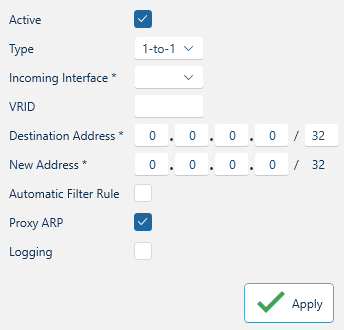

| Field | Description | Required | Notes |
|---|---|---|---|
| Active | Is this rule active? | Yes | - |
| Type | The type of NAT rule | Yes | NAPT or 1:1, will change what fields are available. |
| Incoming Interface | The interface where the packet comes in | Yes | - |
| VRID | Virtual Router ID | No | Make sure the VRID exists in the device, or it will not 'stick' when applying the NAT Rule |
| Destination Address | Packets arriving on the inbound interface and has the IP destination within this subnet will be NATed | Yes | - |
| New Address | The new destination IP network for the NAT | Yes | The subnet size of Destination Address and New Address must be the same |
| Automatic Filter Rule | If set, an automatic (invisible) packet filter rule will be created in the forward filtering chain allowing packets matching this NAT rule. Do not set this option if you want to manage forwarding rules yourself. | No | - |
| Pryxy ARP | WeOS 1-to-1 NAT includes a proxy ARP mechanism, which makes the WeOS unit answer on ARP requests for the external network (Destination Address). The router will only answer on ARP requests originating from the network connected to the Incoming Interface. This makes it possible to use 1-to-1 NAT to pick up traffic to a specific subnet from within a larger network without the need of explicit routing settings. | No | - |
| Logging | Log traffic matching this rule | No | Logging must be enabled in the Logging tab |
Modifier Rules
Changes the DSCP bits in the IP header for routed traffic.
The default is no Modifier Rules.
Only avaible for Extended WeOS 4 devices.
Drag the rows to reorder the rules.
Add Modifier Rule
To add a rule to a WeOS 4 device, click the Add button. This will open a modal where the following fields can be set:


| Field | Description | Required | Notes |
|---|---|---|---|
| Active | Is this rule active? | Yes | - |
| Incoming Interface | The interface where the packet comes in | No | - |
| Outgoing Interface | The interface where the packet is sent out | No | - |
| Protocol | The protocol type of the IP payload. Typically TCP or UDP but the filtering can also be made to match other protocols such as ICMP and ESP. | Yes | - |
| Source Address | The source IP address of the packet | No | - |
| Source Port(s) | The source port(s) of the packet | No | - |
| Destination Address | The destination IP address of the packet | No | - |
| Destination Port(s) | The destination port(s) of the packet | No | - |
| DSCP Set Value | The DSCP value to be set for packets matching this rule | Yes | Valid values 0-63 |
| DSCP Adjust Priority | Indicates if the modified DSCP value should be used for switch internal prioritising and applied to VLAN-priority on tagged packets | No | - |
ALG Helpers
Application Layer Gateway (ALG) helpers are shorthand rules for specific protocols.
The default is no ALG Helpers.
Only available on Extended devices.


FTP and TFTP are the only ALG Helpers available for WeOS 5 devices.
WeOS 4


The following ALG Helpers are available for WeOS 4 devices:
- FTP
- H.323
- IRC
- PPTP
- SIP
- TFTP