Context Menu
The context menu is one of the primary ways to interact with the network from the topology view and the device list. It can be accessed by right-clicking anywhere in the topology, or on a selection of one or more devices in the device list.
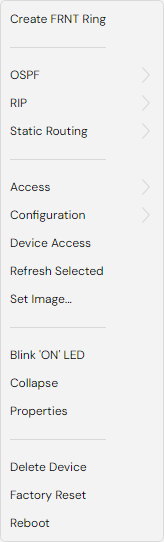
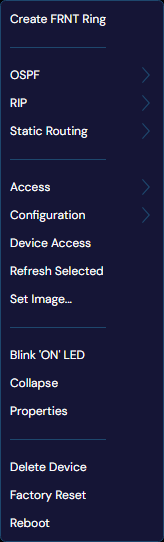
The exact contents of the context menu depends on, well, context. For example, WeConfig will only display context menu options related to OSPF when the current device selection supports any relevant OSPF-based action.
There are a lot of items that may populate this menu, some are listed here below:
Add Device


Add device allows you to add devices ad-hoc to the topology. WeConfig will ask for details pertaining to the device, which may vary for the type of device you are attempting to create, but will always include:
- Management IP address
- Hostname.
- Location, optional.
If attempting to add a type of device that WeConfig is not aware you, you may also add a manually selected image to represent it in this view.
This option is only visible if no devices are selected.
Set Image
This context menu option allows you to set a custom image for a device that is not recognized by WeConfig, i.e not a known Westermo switch or similar.
This option is only visible when a singular, unknown device is selected.
Blink "ON"-LED
Using this context menu option option will start cause devices' "ON"-LED to blink which make it easier to identify the device visually. The device will keep blinking as long as it is selected.
This option is only visible when a singular device that supports LED-blinking is selected.
Access
This context menu contains three choices to access the selected device, either through HTTP, HTTPS or SSH/CLI. Click on the associated protocol to open up an external access attempt to the targeted device If SSH/CLI is selected, the configured SSH client is used. If HTTP or HTTPS is selected, an attempt is made to access the device via the default system browser.
This feature is provided as best-effort attempt, particularly when using it on unknown devices that WeConfig has no awareness of regarding support for HTTP / HTTPS / SSH.
If the device has a known configured Public-key authentication based account, WeConfig may try and authenticate the SSH access session using that account.
This option is only visible when a singular device is selected.
Add Connection
This context menu option is used to set the connection between two devices manually. If one or more of the devices is an unknown devices, the user must specify a port name to connect to manually by typing the name of the port in the provided field for the unknown device(s).
This option is only visible when a single pair of devices is selected.
Delete Devices
This context menu option removes the selected devices and all their connections from the topology.
This option is only visible when one or more devices are selected
This option is also hotkeyed to the 'Delete' keyboard button.
Reboot
This context menu option reboots one or more selected device.
This option is only visible when all selected devices support being rebooted in a manner known to WeConfig.
Factory Reset
Factory Reset resets the selected devices to the factory configuration.
This option is only visible when one or more of the selected devices support factory reset in a manner known to WeConfig
Factory reseting devices may lead to loss of connection, use with caution.
Disable/Enable SNMP
This context menu option enabled or disables SNMP on MRD / BRD devices.
This option is only visible when MRD or BRD devices are selected.
Refresh Selected
This context menu option triggers a refresh operation on the selected devices.
This option is only visible when one or more devices are selected