Device Access Settings
Device access settings is a panel dedicated to controlling how WeConfig authenticates and communicates with the devices in the network.
Interface components
The user interface of this panel is split into three tabs, Access, SNMP and Web, where each tab will contain a list of selected devices as well as an autofill section for quickly replicating settings across multiple devices. Below the three tabs two buttons are located, as follows:
- Test Connection: Check whether or not authentication/access succeeds given the current parameters in the panel. Success or failure will be indicated with either a green circle with a checkmark for success or a red circle with an exclamation point for failure attached to each relevant parameter.
- Apply: Sets the current parameters in the panel as the used authentication / access setting that WeConfig will associate with selected devices, then runs a Refresh on the selected devices.
Access Tab
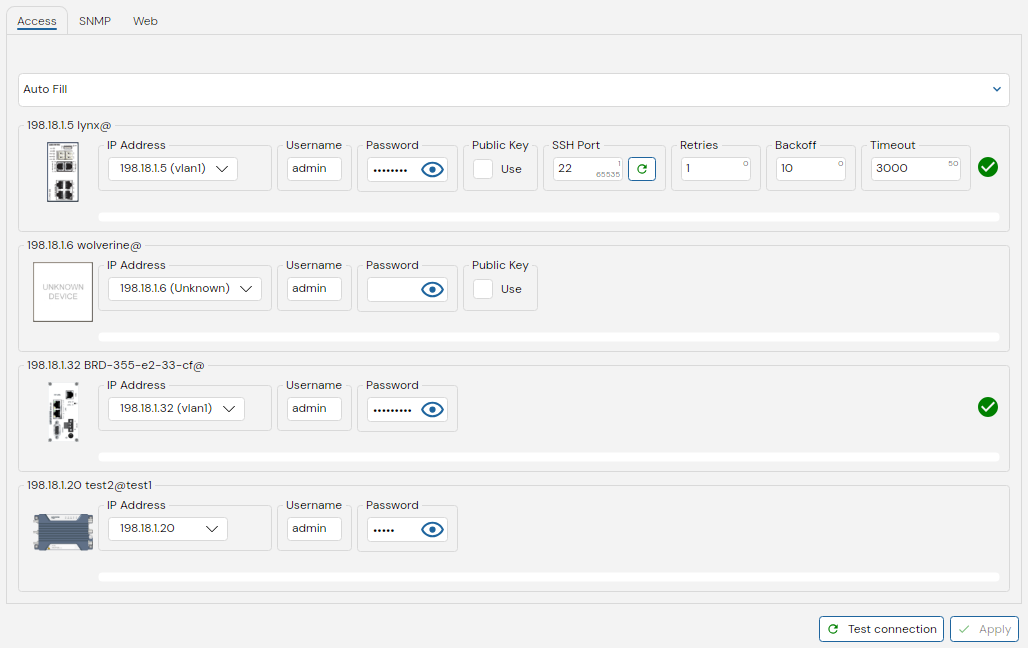
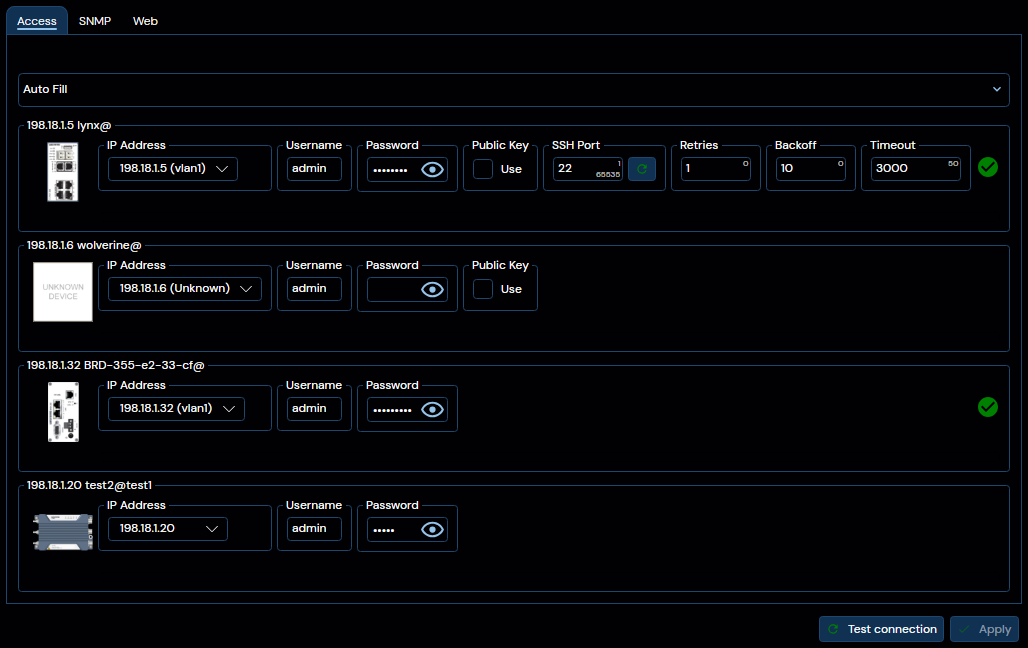
The first of the three tabs, labeled Access, corresponds to device specific settings for how to access the primary means of device communication / configuration, which varies from firmware category to firmware category.
For WeOS devices, this primarily refers to the account used for SSH communication, but is also used for HTTP(s) communication in certain specific scenarios such as firmware upgrade. In contrast, for Ibex devices, this primarily refers to the account used to talk to the REST API on the device, and so on.
The exact parameters presented per device varies in accordance with what it represents. On WeOS 4/5, you will be presented with the following options:
- IP Address: The management IP address used to reach the device, it is a dropdown list containing all known network interfaces / addresses that WeConfig has associated with the device.
- Username: The account username that WeConfig will try and authenticate with over SSH / Web.
- Password: The account password that WeConfig till try and authenticate with over SSH / Web, if any.
- Public Key: A checkbox indicating whether or not WeConfig should try to authenticate using the PC's public key store.
- SSH Port: Which port WeConfig should try and access the device on to reach an SSH session.
Similarly, it can be observed that for xRD's like the BRD-355 depicted in the example above, only the password box will be editable, as that is the only form of authentication parameter that can be handled by that firmware at the time of writing.
Additionally, as depicted in the example above, when "Test Connection" has been run, the success of the configured parameters is indicated by checkmarks or exclamation points to the righthand side of each device parameter set.
The contents of the Access tab may be automatically updated when configuring accounts.
SNMP Tab
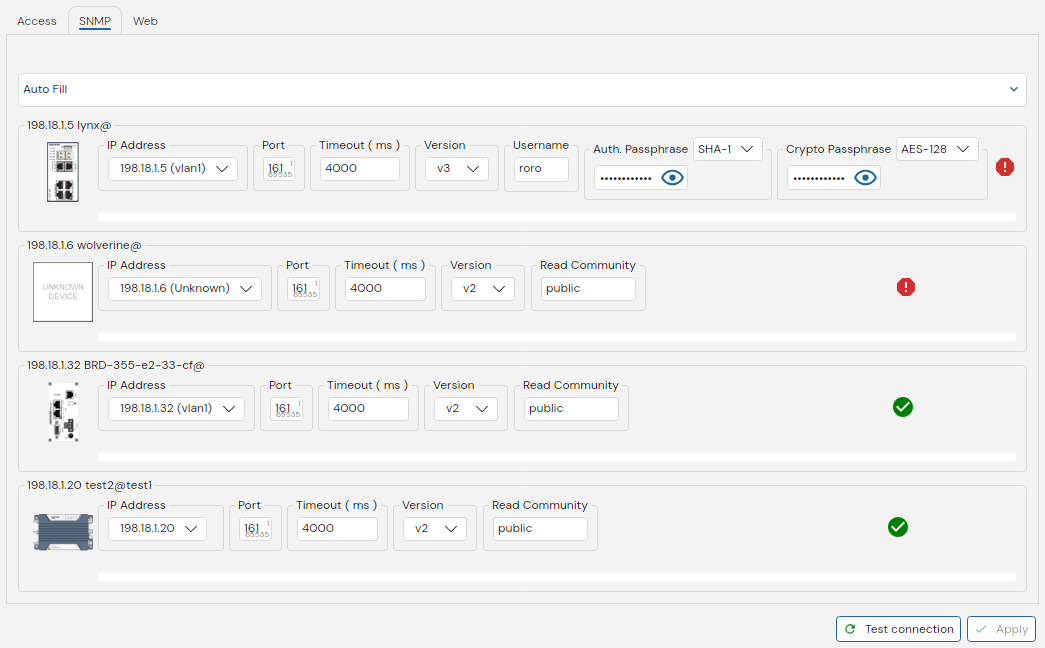
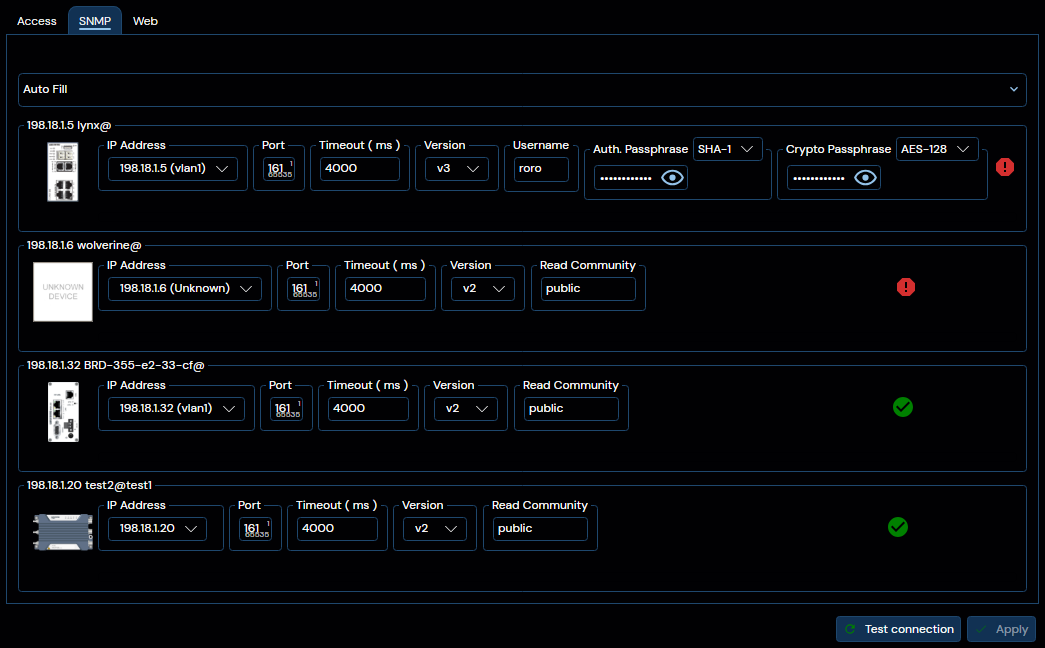
The second of the three tabs, label SNMP, corresponds to device specific settings for how WeConfig communicates with devices using the SNMP protocol. It, similarly to the access tab, has a dropdown box for selecting the target management IP address amongst the devices known IP addresses.
Secondly, each device contains a selector between SNMP v2 and SNMP v3, with the corresponding settable parameters adjusted based on your selection. For SNMP v2, only the read community needs to be set here. For SNMP v3, as can be seen, you must set a username, and may optionally set an authentication digest and password, as well as a privacy crypto and password.
Similarly to the Access tab, the success of using these parameters to communicate with the device is indicating to the righthand side as either a checkmark or an exclamation point.
The contents of the SNMP tab may be automatically updated when configuring SNMP
Web Tab
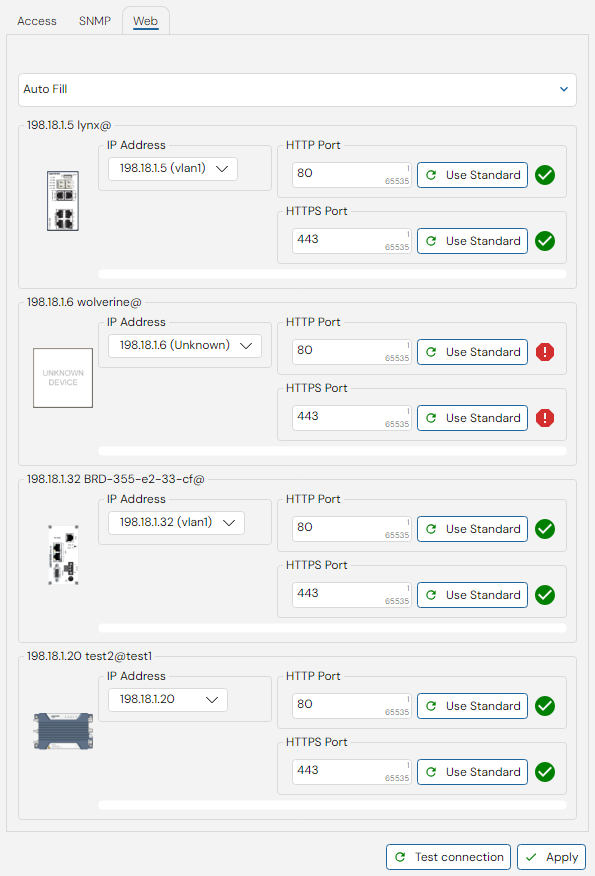
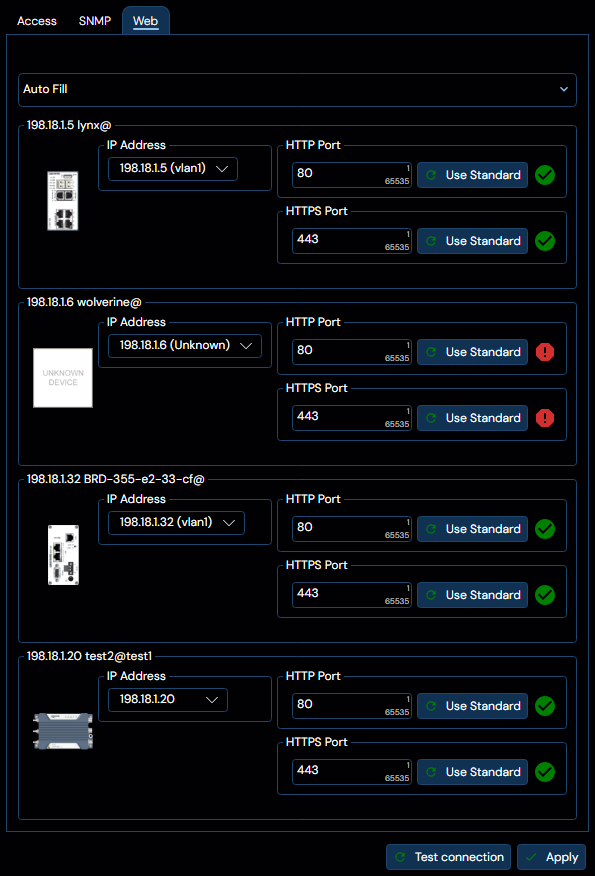
The third and final tab in this panel, labeled Web, corresponds to device specific settings for overriding the default HTTP and HTTPs ports. This interface is fairly straightforwards, and does not differ between device firmware families.
Similar to prior tabs, "Test connection" will also indicate whether the corresponding HTTP / HTTPS protocol is successfully reachable on the indicated port.