Firmware Upgrade
Firmware upgrade is a staged task that allows for upgrading or downgrading the running, backup and bootloader firmware on supported devices.
To be able to use this feature, you must be connected to the internet, or have downloaded desired firmware ahead of time. If you have downloaded the firmware ahead of time, ensure it is placed in the firmware folder
Interface Components
The firmware upgrade interface is divided into five stages, Family, Version, Devices, Algorithm and Overview, where each is explained below:
Family
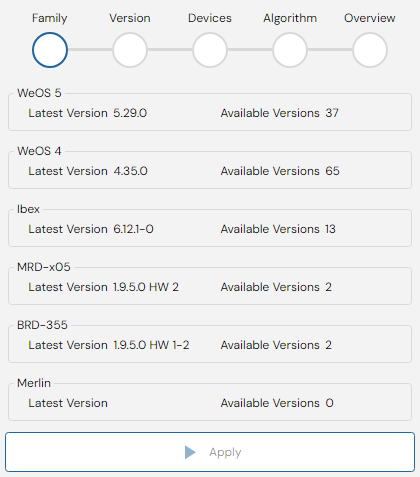
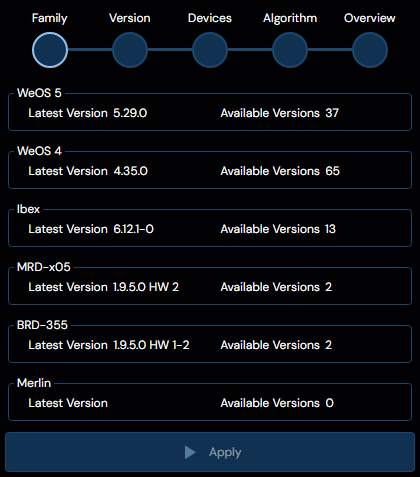
The first stage in firmware upgrade presents you with a choice of firmware families detected in the network. Where each family is listed as box with the title being the firmware family name, and the contents showcasing the latest version available within said family, as well as the total number of firmware versions present.
Click on the desired firmware family to proceed to the next stage.
If only one firmware family currently exists in the network, this stage is skipped.
Version
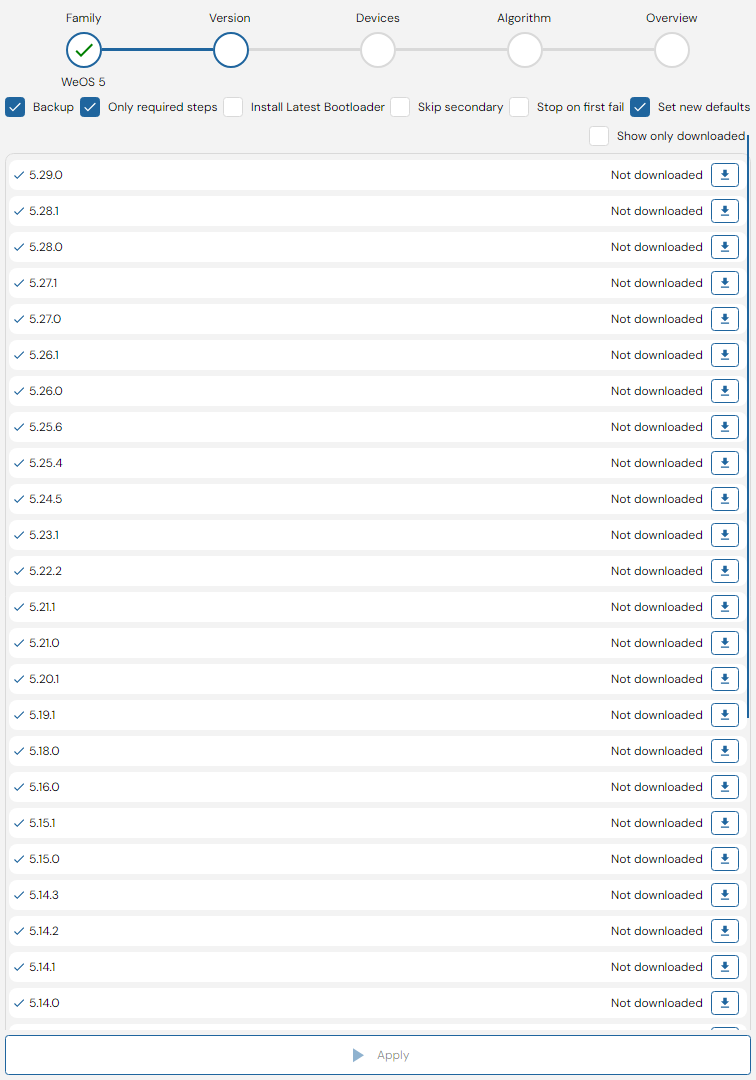
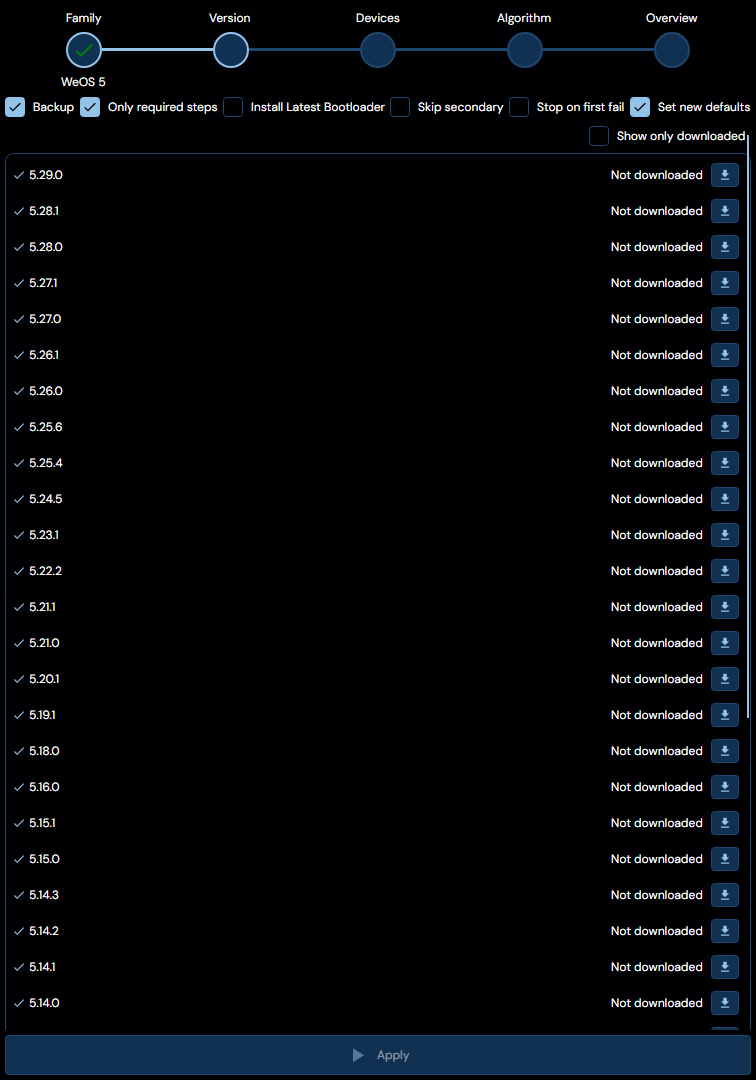
The second stage in firmware upgrade presents a list of firmwares based on the selected family in the prior stage. These may either be marked as Validated, via a green checkmark, or as Unvalidated, via a yellow triangle with an exclamation point. A firmware version is considered Unvalidated when it originates from the users local disk, instead of being downloaded by WeConfig.
WeConfig makes no guarantees about the functionality or safety of Unvalidated firmware.
Additionally, this view will also indicate the download status of each firmware in the list. If the firmware is not already downloaded, as indicated in the picture above by the "Not downloaded" text
Click on the desired firmware version to proceed to the next stage.
If only one firmware version exists in the selected family, this stage is skipped.
Devices
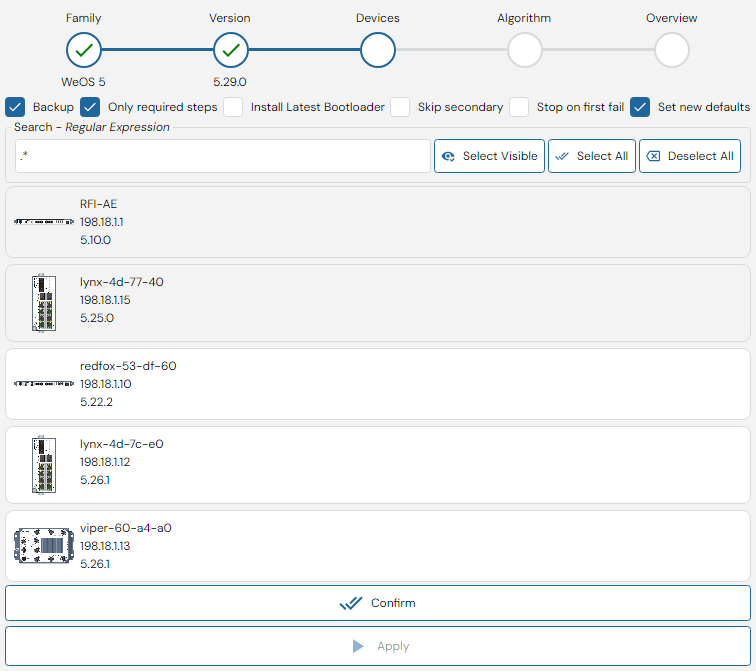
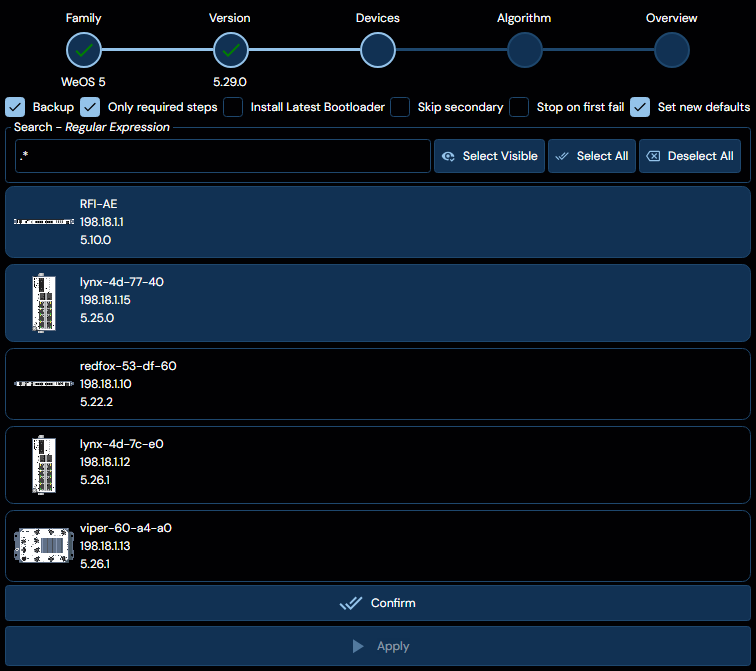
The third stage in firmware upgrade presents a list of devices compatible with the selected firmware version, where any matching devices already selected in the topology are preselected. The list will also display any possible issues or warnings related to firmware upgrade. At the top of the interface a search box is provided to filter the list of devices, this box accepts regular expressions for advanced filtering, and matches against the following properties:
- IP Address
- Hostname
- Location
- Firmware Version
- Model Name
Select the desired devices (either manually or using select all) and click "Confirm" to proceed to the next stage.
Algorithm
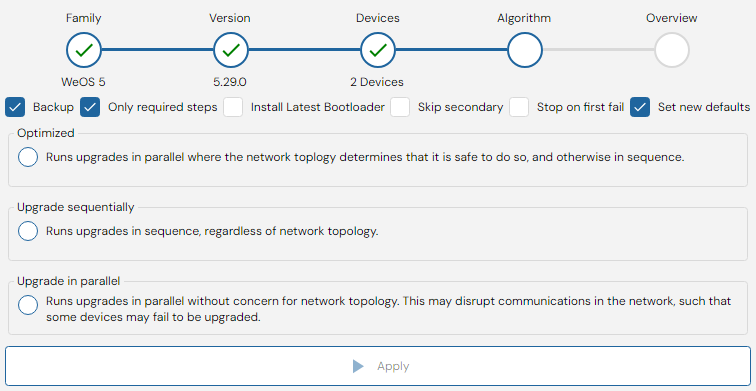
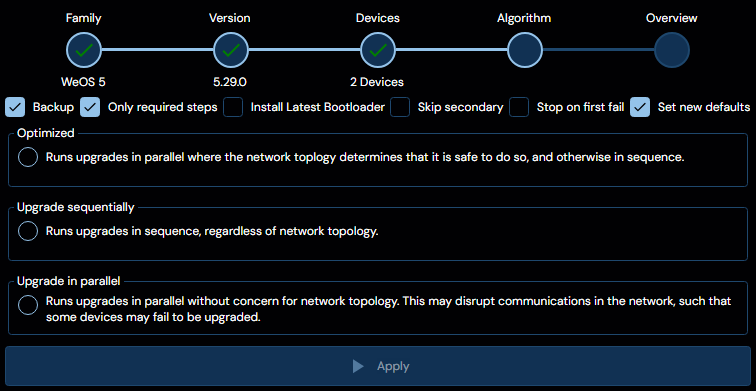
The fourth stage in firmware upgrade presents three options for the order-of-execution of the firmware upgrade sequence, the options are as follows:
| Option | Description |
|---|---|
| Optimized | Parallelizes firmware upgrade when possible according to network order. |
| Upgrade sequentially | Do not parallelize firmware upgrade, run them in displayed top-down order. |
| Upgrade in parallel | Attempt to do all firmware upgrades in parallel |
Click on the chosen algorithm option to proceed.
Unless a specific use-case demands otherwise, it is suggested to use the Optimized algorithm when you have a fully detailed connection map of the topology.
Overview
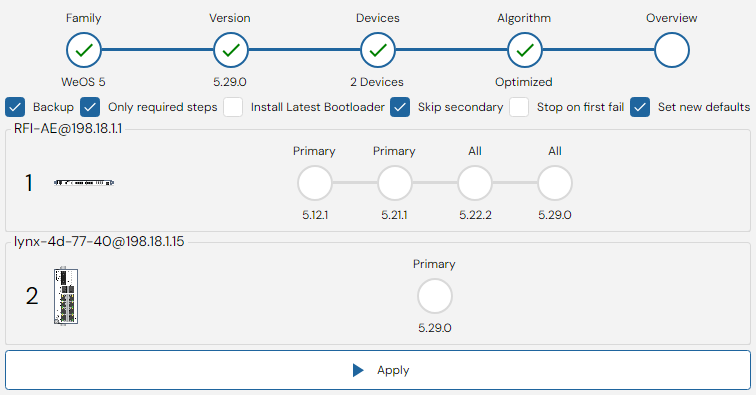
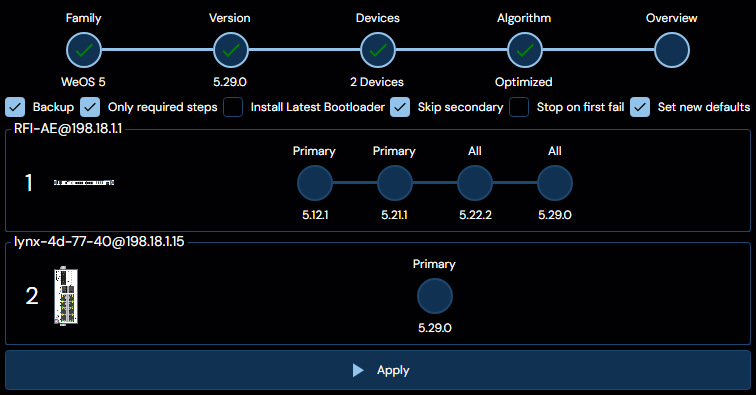
The fifth and final stage in firmware upgrade presents you with a list of planned actions for WeConfig to undertake. As can be observed in the example above, to take 198.18.1.1 to 5.29.0, WeConfig needs to upgrade it through the required versions of 5.12.1, 5.21.1, and 5.22.2 before finally upgrading to 5.29.0.
Additionally, any remaining potential issues are also displayed on the devices here.
The number to the left of the device is its Upgrade Order. This is based on the algorithm you chose in the previous step. Devices with the same number will be upgraded in parallel.
Global options
Atop the interface in stage 2-5 several checkboxes may appear, which slightly change the firmware upgrade procedure when checked, they are as follows:
| Option | Description |
|---|---|
| Backup | When checked, WeConfig will take a backup of the current configuration file before performing an upgrade, checked by default |
| Only required steps | When unchecked, WeConfig will move through every intermediary version between the source and target version, when checked, WeConfig will only move through the versions considered necessary |
| Install latest bootloader | When checked, WeConfig will always attempt to upgrade the bootloader if a newer one exists in the provided firmware package, otherwise, WeConfig will only upgrade the bootloader when necessary |
| Skip Secondary | When checked, WeConfig will not upgrade the backup firmware on any of the devices, otherwise, it will upgrade the backup firmware as well. |
| Stop on first fail | When checked, WeConfig will not attempt further upgrades after the first failure occurs. |
| Set new defaults | When checked, WeConfig applies factory default parameters to each device after the firmware upgrade completes. This resets device configuration to the new firmware version's defaults |
For firmware versions composed of multiple files (such as WeOS 5.26+), WeConfig handles the multi-file firmware package automatically. No additional user action is required — select the firmware package as usual, and WeConfig manages the individual files transparently during the upgrade process.